
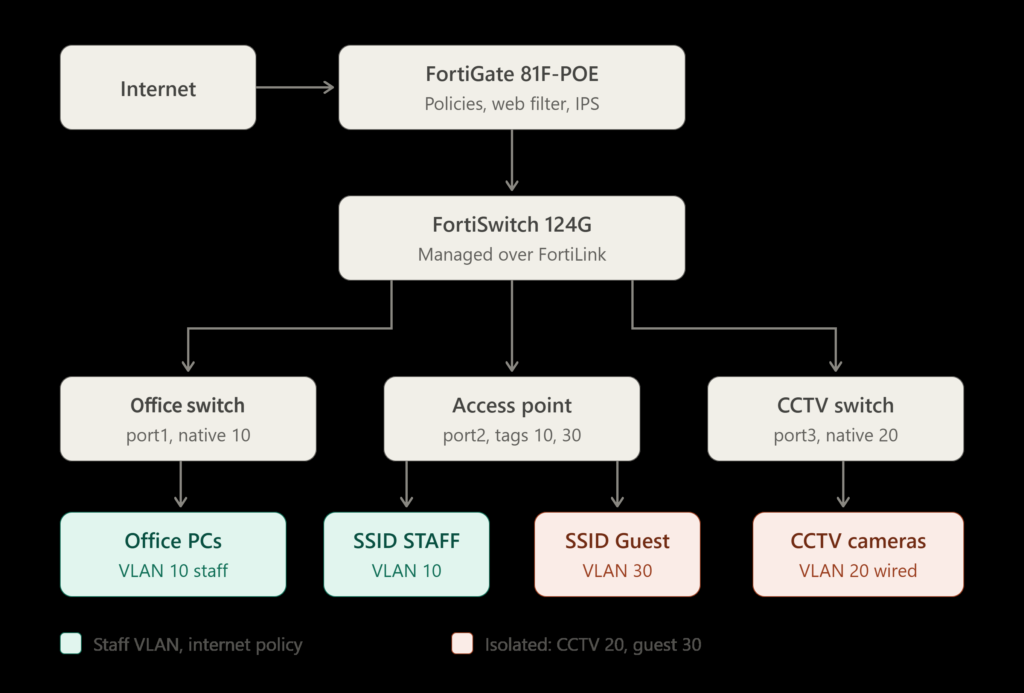
A clean FortiSwitch VLAN setup lets one FortiGate manage staff, CCTV and guest traffic from a single screen. This guide covers the exact setup I use: a FortiGate 81F-POE managing a FortiSwitch 124G over FortiLink on FortiOS 7.6.
You will create three VLANs, turn on DHCP for each one, set native and allowed VLANs on the switch ports, and lock down traffic with firewall policies. I also cover three problems that cost me time: DHCP not handing out addresses, a VLAN not reaching its clients, and the wrong native VLAN on a port.
Every step has a GUI path and a CLI equivalent. The last section shows how to verify each part, so you can confirm the FortiSwitch VLAN setup works before users plug in.
In this guide
- What you need before a FortiSwitch VLAN setup
- How FortiLink VLANs work
- Step 1: Create the staff, CCTV and guest VLANs
- Step 2: Enable DHCP on each VLAN
- Step 3: Set native and allowed VLANs on switch ports
- Step 4: Add firewall policies between the VLANs
- How to verify your FortiSwitch VLAN setup
- FAQ
What You Need Before a FortiSwitch VLAN Setup
This guide assumes the FortiSwitch is already connected to the FortiGate over FortiLink and shows as online under WiFi & Switch Controller > Managed FortiSwitch. The hardware and software used here:
| Component | Used here | Note |
|---|---|---|
| Firewall | FortiGate 81F-POE | Has two PoE/+ FortiLink ports by default |
| Switch | FortiSwitch 124G | Listed in the FortiSwitchOS 7.6.x supported models |
| Software | FortiOS 7.6 | FortiLink is not supported when the FortiGate runs in transparent mode |
The network uses three VLANs:
| VLAN name | VLAN ID | Gateway / subnet | Purpose |
|---|---|---|---|
| staff | 10 | 192.168.10.1/24 | Office PCs and the STAFF SSID |
| cctv | 20 | 192.168.20.1/24 | Wired cameras only, isolated |
| guest | 30 | 192.168.30.1/24 | Guest SSID, isolated |
And three switch ports carry them:
| Port | Connected to | Native VLAN | Allowed VLANs |
|---|---|---|---|
| port1 | Core switch to the office PCs | staff | staff |
| port2 | Access point | Your AP management VLAN | staff, guest |
| port3 | CCTV switch | cctv | cctv |
Note: Each SSID is mapped to its VLAN ID on the access point, so the switch receives tagged frames for VLAN 10 and VLAN 30 on port2. Untagged AP management traffic follows whatever native VLAN you set on that port.
How FortiLink VLANs Work: Native, Allowed and Untagged
In FortiLink mode you create VLANs on the FortiGate, not on the switch. The FortiGate pushes them to the FortiSwitch, and each port gets three settings:
| Setting | What it does |
|---|---|
| Native VLAN | The default VLAN for untagged frames arriving on the port. Frames of the native VLAN leave the port untagged. |
| Allowed VLANs | A tagged frame must match a VLAN ID in the Allowed VLANs list. |
| Untagged VLANs | VLANs sent out without a tag. Each one must also be in the allowed list, and it only affects outgoing traffic. |
Traffic stays inside its own VLAN by default. Moving between VLANs needs routing through the FortiGate and a firewall policy, which is why Step 4 matters. Fortinet documents the details in its FortiLink guide under Configuring VLANs.
Step 1: Create the Staff, CCTV and Guest VLANs
Using the GUI:
- Go to WiFi & Switch Controller > FortiSwitch VLANs and select Create New.
- Enter the interface name (
staff), the VLAN ID (10) and a colour. - Set the IP/Netmask to the gateway address, for example
192.168.10.1/255.255.255.0. - Set the role to LAN.
- Repeat for
cctv(VLAN 20) andguest(VLAN 30).
Tip: If you use the FortiGate security rating, do not leave the role as Undefined. Assign LAN, WAN or DMZ to each FortiLink VLAN interface before you reference it in a firewall policy, or the rating score drops.
Keep administrative access minimal. For the guest and CCTV interfaces, leave it off entirely.
The same thing in the CLI:
config system interface
    edit "staff"
        set vlanid 10
        set interface "fortilink"
        set ip 192.168.10.1 255.255.255.0
        set role lan
    next
    edit "cctv"
        set vlanid 20
        set interface "fortilink"
        set ip 192.168.20.1 255.255.255.0
        set role lan
    next
    edit "guest"
        set vlanid 30
        set interface "fortilink"
        set ip 192.168.30.1 255.255.255.0
        set role lan
    next
end
Step 2: Enable DHCP on Each VLAN
In the same VLAN dialog, enable the DHCP server for IPv4 and set the address range. The CLI version for the staff VLAN looks like this:
config system dhcp server
    edit 10
        set interface "staff"
        set default-gateway 192.168.10.1
        set netmask 255.255.255.0
        set dns-service default
        config ip-range
            edit 1
                set start-ip 192.168.10.100
                set end-ip 192.168.10.200
            next
        end
    next
end
Repeat for cctv and guest with their own subnets. The server ID (10 here) only needs to be unique, so pick one that is not already used.
DHCP not working? Check whether the lease pool is full
One blocker I hit was DHCP not working, and the cause was a full lease pool. When no free address is left, the FortiGate does not send an offer and ignores the client’s DHCP discover, so the client just ends up without an IP. List the leases for one interface:
execute dhcp lease-list guestIf the pool is nearly used up, you have three options:
- Widen the
ip-rangeto match the number of devices on that VLAN. - Shorten the lease time so inactive devices release their address sooner.
- Release stale leases with
execute dhcp lease-clear <ip-address>.
The lease time is set in seconds. One hour suits a busy guest VLAN:
config system dhcp server
    edit 30
        set lease-time 3600
    next
end
Note: lease-clear only removes the entry from the FortiGate. The client keeps its address until its own lease runs out. Also, a FortiOS 7.6.6 report says the View DHCP Clients option on the FortiSwitch VLANs page does not filter by VLAN correctly, so use the CLI per interface when in doubt. You can also see leases under Dashboard > Network > DHCP.Step 3: Set Native and Allowed VLANs on FortiSwitch Ports
Using the GUI:
- Go to WiFi & Switch Controller > FortiSwitch Ports.
- Click the port row you want to change.
- Click the Native VLAN column and pick the VLAN from the list.
- Click the + icon in the Allowed VLANs column and select the VLANs that port may carry.
The CLI version for the three ports in this guide:
config switch-controller managed-switch
    edit "<switch-serial-number>"
        config ports
            edit "port1"
                set vlan "staff"
                set allowed-vlans "staff"
            next
            edit "port2"
                set vlan "mgmt-vlan"
                set allowed-vlans "staff" "guest"
            next
            edit "port3"
                set vlan "cctv"
                set allowed-vlans "cctv"
            next
        end
    next
end
Wrong native VLAN: what it looks like
An untagged device always lands in the port’s native VLAN. If the CCTV switch on port3 sits on the wrong native VLAN, the cameras get an address from the wrong subnet, or none at all. For a tagged setup like the access point, a VLAN missing from the allowed list means that SSID connects but passes no traffic. Both cases are easy to spot with the checks in the verification section.
Step 4: Add Firewall Policies Between the VLANs
On the FortiGate, the FortiSwitch VLAN interfaces behave like normal layer-3 interfaces, so firewall policies and security profiles apply to them. A VLAN with no policy can talk only inside itself, and that is what keeps CCTV and guest isolated.
| Policy | Incoming | Outgoing | Action |
|---|---|---|---|
| staff-to-internet | staff | your WAN interface | Accept, NAT on, security profiles on |
| guest-to-internet | guest | your WAN interface | Accept, NAT on, security profiles on |
| cctv | none | none | No policy, so traffic to other networks is denied |
Do not create any policy between guest and staff, or between CCTV and staff. If staff need to view cameras, add one narrow policy from staff to the NVR address only.
For the internet policies, I apply the same security profiles to both the STAFF and Guest traffic:
- Web filter: block the FortiGuard security risk categories such as malicious websites, phishing and spam URLs.
- IPS: under Botnet C&C, set Scan Outgoing Connections to Botnet Sites to Block, and enable Block malicious URLs.
- DNS filter: enable Redirect botnet C&C requests to Block Portal.
Note: These protections depend on FortiGuard. Without a valid subscription, category web filtering stops working and the botnet lists stop updating, so check your licence status after setup.
How to Verify Your FortiSwitch VLAN Setup
Do these checks in order. Each one rules out a different problem.
1. Confirm the switch is online and in sync
execute switch-controller get-conn-status <switch-serial-number>
execute switch-controller get-sync-status all
execute switch-controller diagnose-connection <switch-serial-number>
The connection should be up and the configuration status in sync. If the sync is stuck as pending, the VLAN settings have not reached the switch yet.
2. Check the native and allowed VLANs
In the GUI, open WiFi & Switch Controller > FortiSwitch Ports and read the Native VLAN and Allowed VLANs columns for port1, port2 and port3. In the CLI:
show switch-controller managed-switchLook under config ports and compare the vlan and allowed-vlans lines with your plan.
3. Confirm which VLAN each device landed on
diagnose switch-controller mac-cache showThis lists the clients each managed switch has learned, with the VLAN ID, port, MAC address and how long ago it was seen. A staff PC should appear on port1 in VLAN 10, and anything behind the CCTV switch on port3 in VLAN 20. A client in the wrong VLAN points straight at the native VLAN of that port.
Note: If this list is empty for every switch, check that HTTPS is enabled on the FortiSwitch interface before assuming the VLANs are broken.
4. Check the DHCP leases
execute dhcp lease-list staff
execute dhcp lease-list cctv
execute dhcp lease-list guest
Each device should hold an address from its own subnet. The subnet tells you the VLAN: a device on a CCTV port with a 192.168.10.x address is sitting in the staff VLAN. To watch the DHCP exchange live on one VLAN:
diagnose sniffer packet interface 'filter' verbose count tsformatdiagnose sniffer packet guest 'port 67 or port 68' 4 10 lA healthy exchange shows discover, offer, request and acknowledge. Discover packets with no offer usually mean an empty pool or no DHCP server on that interface. Fortinet also explains lease handling in this DHCP address leases article.
5. Test reachability and isolation
| Test | Expected result |
|---|---|
| Staff PC gets an address | 192.168.10.x with gateway 192.168.10.1 |
| Phone on the Guest SSID gets an address | 192.168.30.x with gateway 192.168.30.1 |
| Staff PC opens a website | Works, and the web filter applies |
| Guest device pings a staff PC | Fails (timeout) |
| CCTV device pings a staff PC | Fails (timeout) |
To test from the FortiGate itself, set the ping source to the VLAN gateway first:
execute ping-options source 192.168.10.1
execute ping 192.168.10.100
Ping a device, not the other VLAN’s gateway. The FortiGate answers for its own interface addresses, so a gateway ping can succeed even when isolation is working.
Quick troubleshooting table
| Symptom | Likely cause | What to check |
|---|---|---|
| Client gets no IP address | DHCP pool full, or DHCP server not enabled on the VLAN | Lease list, ip-range, lease time |
| Client gets an address from the wrong subnet | Wrong native VLAN on the port | Native VLAN column, MAC cache |
| SSID connects but has no traffic | VLAN missing from the allowed list on the AP port | Allowed VLANs on port2 |
| VLAN works but nothing reaches the internet | No firewall policy for that VLAN | Policy list, outgoing interface |
| MAC cache is empty | HTTPS disabled on the switch interface, or sync pending | Sync status, interface access settings |
FortiSwitch VLAN Setup FAQ
What is the difference between native VLAN and allowed VLAN on a FortiSwitch?
The native VLAN is where untagged frames go when they enter a port, and it leaves that port untagged. The allowed VLAN list is the set of tags the port may send and receive. A tagged frame must match a VLAN ID in the Allowed VLANs list.
Does the FortiSwitch 124G work with FortiOS 7.6?
The FS-124G is listed among the models supported by FortiSwitchOS 7.6.x. Match your exact FortiOS and FortiSwitchOS versions against Fortinet’s FortiLink compatibility table before upgrading either one.
Why are clients on my FortiSwitch VLAN not getting an IP address?
The most common causes are a full DHCP lease pool, no DHCP server on the VLAN interface, or the port sitting in the wrong native VLAN. Check the lease list for that interface first, then the port’s native and allowed VLANs.
Do I need a firewall policy between VLANs?
Yes, if the VLANs need to talk to each other or reach the internet. Traffic between VLANs goes through the FortiGate, and a VLAN with no matching policy is blocked. That is also how you keep guest and CCTV isolated.
Does FortiLink work when the FortiGate is in transparent mode?
No. Fortinet states that FortiLink is not supported in transparent mode, so the FortiGate must run in NAT mode to manage a FortiSwitch this way.
FortiSwitch VLAN Setup Summary
A reliable FortiSwitch VLAN setup comes down to four steps: create the VLANs on the FortiGate, enable DHCP, set native and allowed VLANs on every port, and add policies only where traffic should flow. Then verify with the switch status, MAC cache, DHCP leases and isolation tests before trusting it.
If something breaks, work through the troubleshooting table from the top. In my case the DHCP problem was a full lease pool, so check the lease list before anything else.